two screens, properly
How it actually works
The track listing says what there is. This is the other question: how do you use the screen a practice opens every day, and what is the one nobody else builds for?
the daily one
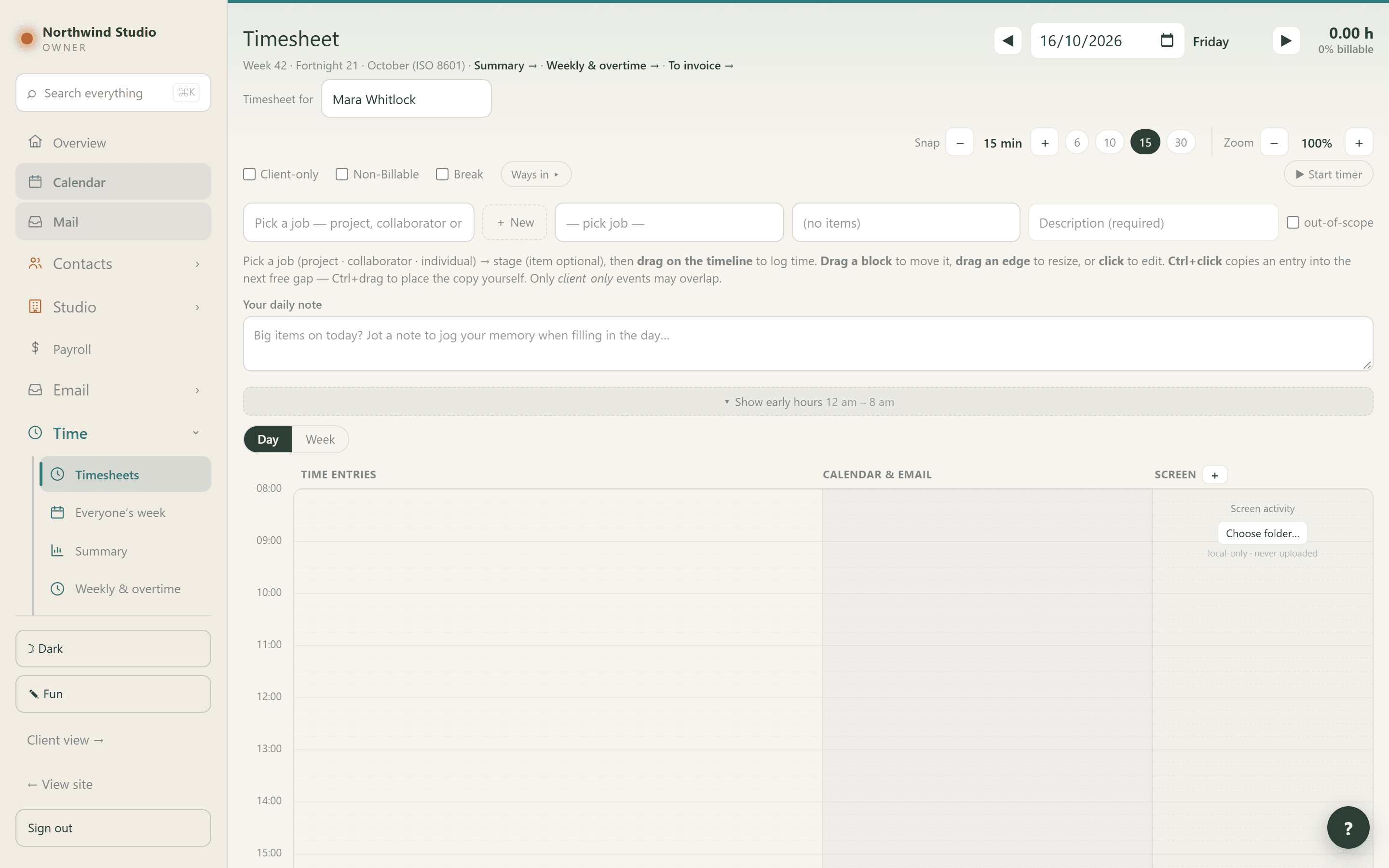
Timesheets, start to finish
Everything else in here is made of the hours on this screen, which is why it gets three ways in and no required fields it can work out for itself. Seven steps, and the last two are the ones people are surprised by.
- 1
Open the week and click where the time went
The lane is the day, top to bottom. Click an empty patch and the form opens already knowing WHEN — the one field nobody wants to type. You say what it was: work, a break, or office time.
- 2
Give it four references, and they all matter later
The job, the stage within that job, the kind of work, and what you actually did. The first two decide which fee it eats into; the last one is the line a client reads on a statement three years later, in your own words.
- 3
Or drag it, or run a timer — whichever suits the day
Set the job and description above the lane and drag out the block. Or press the timer and forget about it: it survives a reload and a trip to another page, because it remembers the instant you started rather than counting in the tab.
- 4
Copy the repeats instead of retyping them
Ctrl+drag a block to copy it — same job, stage, type and description — and drop it on another day if that is where it goes. A copy keeps its length rather than shrinking into whatever gap it lands in, because a quietly halved copy looks exactly like one that worked.
- 5
Plan time the same way, and nothing counts it
Blocked-out time is drawn dashed and faded, stays out of the week’s hours and the billable share, and can never reach an invoice. Press “✓ I did this” when it happens and it becomes real work. A day full of intentions must not read as a day worked.
- 6
The hour is now in five other places
Work in progress on that job. The fee bar at the top of it. What is waiting to be invoiced. The person’s week and their capacity. And, if they are a contractor, what they can claim. You typed it once.
- 7
Approving decides one thing: what the client sees
An approved line appears on their Statement of Hours; one that is not is simply left off. It is counted, costed and billed either way. Who is approved the moment they log an hour is a practice setting, and anybody may be more cautious with their own hours than the practice is — never less.
the one nobody builds
Fee reconciliation
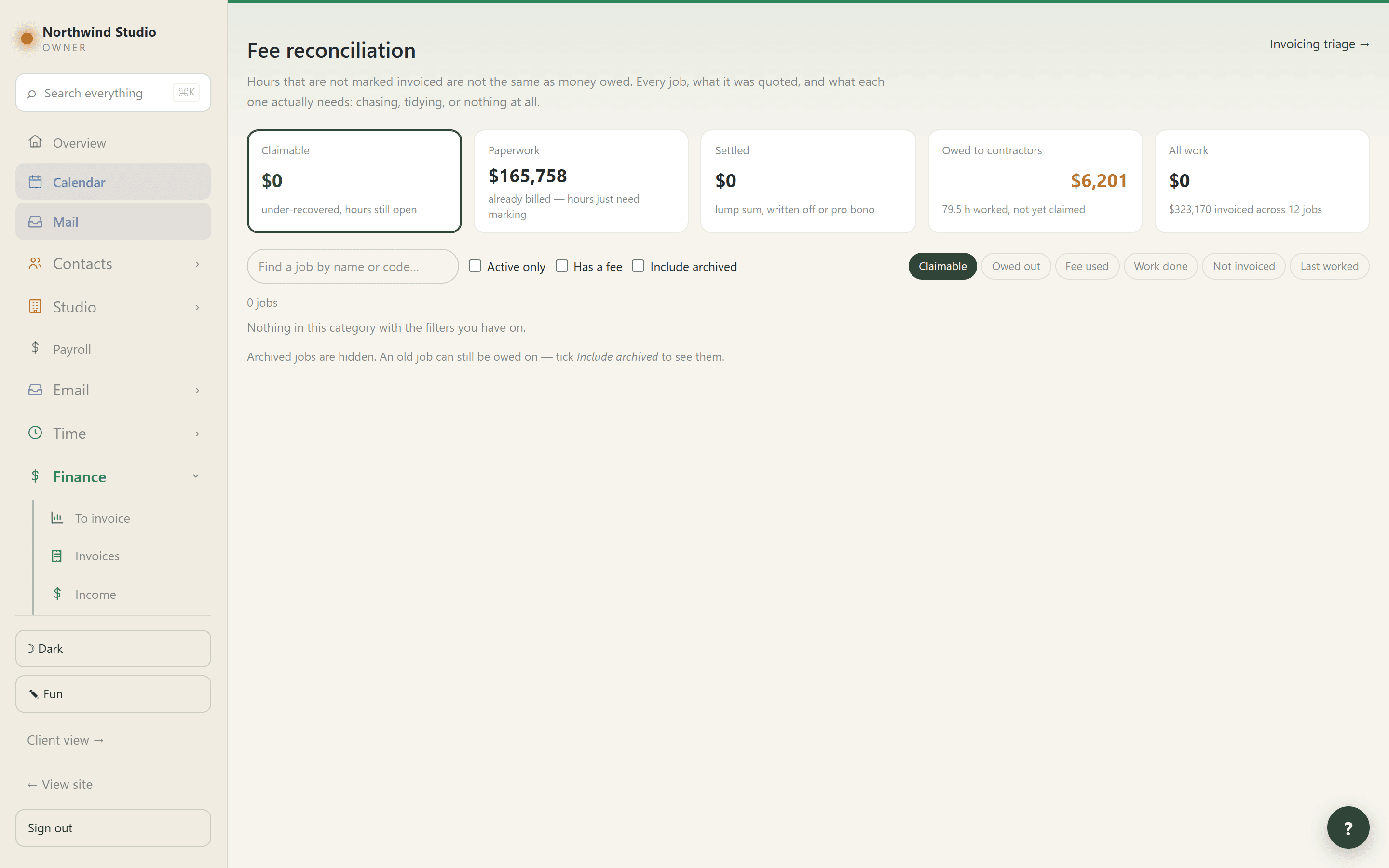
Ask any practice what it is owed and you get a number from the debtors list. Ask what it has earned and not yet asked for and the answer is usually a shrug and a figure nobody trusts. This is that figure, taken apart into the pieces you can actually do something about.
- 1
Start from the question nobody else asks
“We have 400 uninvoiced hours” is not a number you can act on, because it is three unrelated situations wearing one label: work to chase, paperwork to tidy, and work that was never going to be billed. Fee reconciliation splits them apart. That is the whole screen.
- 2
Claimable — the only one that is money
Under-recovered jobs with hours still open against them. This is the pile to invoice. It is the first tile because on most screens like this it is buried inside a total that makes the practice look owed far more than it is.
- 3
Paperwork — already billed, just not marked
Jobs where you have charged at least what the work is worth and the hours simply need resolving. Nothing to chase, nothing lost, an afternoon of admin. Knowing which of your “uninvoiced” hours are this is most of the relief.
- 4
Settled — decisions you already made
Hours on stages resolved as a lump sum, written off, or done pro bono. They stay visible and stay out of the money. A write-off that disappears is a write-off you make twice.
- 5
Owed to contractors — the direction nobody shows you
Every other figure here is what a client owes you. This is what you owe, for time worked and not yet claimed, named person by person. A job can look comfortably recovered and still be carrying somebody’s unbilled fortnight.
- 6
And it is valued at what you will actually pay
Contractor time counts at their PAY rate, not the charge-out rate the client was billed — never a planned block, never an hour already claimed or set aside, and nothing before that person’s own claims-from date. Valuing it at charge-out would overstate what you owe by the margin.
The five tiles are the totals and the filter, so pressing one shows you exactly the jobs behind it. Archived jobs are hidden until you ask for them — an old job can still be owed on — and work logged against no job at all is counted separately rather than disappearing out of a per-job table.
the quiet ones
Ten things most of them leave out
None of these is a headline feature. Every one of them is a specific way a practice loses money or an argument, and each exists here because it happened to somebody first.
Hours are claimed by the DRAFT, not the sent invoice
The moment a draft exists its hours leave the to-invoice pile, so a second invoice cannot bill work the first is already waiting on. Discard the draft and they come straight back. Most systems flag on send, which leaves a window where the same afternoon can be billed twice.
A watermark for work that was billed before the system existed
Every job has an “invoiced hours to” date. Hours before it are treated as already covered and are never offered again — which is how you move fifteen years of history in without the first invoice trying to bill 2014. Move the date back and they return.
A prepayment comes off the director’s fee, not just the invoice
Draw down a credit and the hours it paid for were funded by the earlier invoice, so an hourly director’s fee on the drawing invoice is worked out net of it. Without that the same hours fund a fee twice — once when the money came in, once when it is used.
The pay run remembers what actually left the bank
Marking it paid freezes the total. If its expenses later stop adding up to that figure — a receipt corrected, one deleted — the run says “$22.95 unaccounted” rather than quietly shrinking. Money that has already moved should not be able to change size.
Every recipient of a drawing gets their own link
Which is what lets the register say the builder opened it on Tuesday and the certifier never did, and what lets one person be cut off without withdrawing from everybody. Opening one needs a six-digit code sent to the address it went TO, so a forwarded link is useless.
A document sitting at a revision that was never issued
Rev C on your server, Rev B on the last transmittal — flagged in red at the top of the register. That is the one nobody notices until a builder prices the wrong drawing.
“It’s a transfer” is a category the whole system reads
Not a sentence in a notes box. So a Stripe payout you have explained once stops being asked about on the bank screen, the income screen and in the accountant’s pack — instead of coming back every quarter with “record as income” as the only button.
The accountant’s questions, answerable before you send them
Every credit that names neither an invoice nor an income line, by quarter, with somewhere to type what it was. It is the same list they receive — not a preview — so clearing it here genuinely clears their sheet. Answered rows stay, because they are entitled to disagree.
Closing a year actually closes it
Set “books closed up to” and nothing on or before that date can be created, edited or deleted anywhere in the portal — checked when the record saves, not by greying out a button, so it holds for a tab left open since last year.
Both sides keep their own record of being paid
A contractor marks their claim paid when the money lands; the office marks it paid when it goes out. Where the two disagree, both screens say so by name. Nothing else in a practice would ever point that out.
Easier shown than read. Half an hour on a call and we will open whichever of these you are least convinced by.